
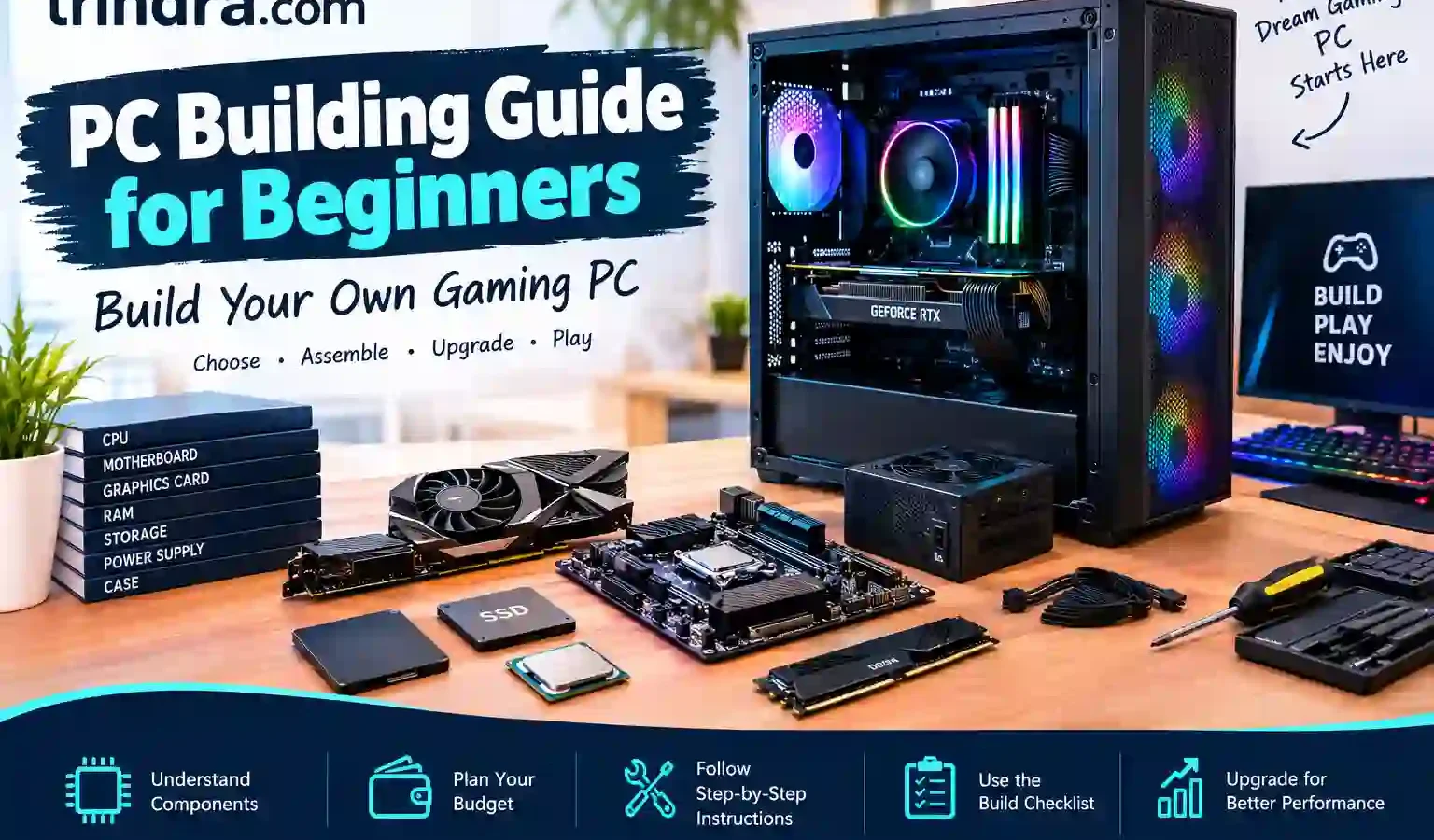
PC Building Guide for Beginners: Build Your Own Gaming PC
PC Building Guide for Beginners: Build Your Own Gaming PC
Building your own gaming computer is an exciting way to learn about technology while creating a system that matches your gaming needs. A PC building guide for beginners helps you understand computer components, choose compatible hardware, manage your budget, and assemble your system with confidence. Whether you want an affordable setup for casual gaming or a powerful computer for demanding games, proper planning makes the process easier.
One major advantage of building your own computer is the freedom to choose each component. You can prioritize graphics performance, processing power, storage capacity, and future upgrades according to your requirements. Following a reliable PC building guide for beginners also helps you avoid unnecessary expenses and understand how different hardware components work together.
In this guide, you will discover the essential PC build steps, learn how to select suitable components, and explore practical ways to create a budget-friendly gaming system. You will also find a gaming PC build checklist and helpful advice for upgrading your computer as your needs change.
PC Building Guide for Beginners: Understanding Essential Components
Before purchasing hardware, learn about the main components of a gaming computer. Understanding their functions will help you make informed decisions and avoid compatibility problems. A good building a gaming PC guide begins with selecting parts that work together efficiently.
1. Choosing the Right Processor for Your Gaming PC
The central processing unit (CPU) performs calculations and manages instructions that allow your computer to run games and applications. AMD Ryzen and Intel Core processors are popular choices for gaming systems.
When selecting a CPU, consider your preferred games, budget, and performance requirements. Some games benefit significantly from strong processor performance, while others depend more heavily on the graphics card.
2. Selecting a Graphics Card for Better Gaming Performance
A graphics processing unit (GPU) renders images, visual effects, and animations in games. It is particularly important when you want smooth gameplay, detailed graphics, or higher screen resolutions.
Your graphics card should match your monitor and gaming expectations. Entry-level options may be sufficient for casual gaming, while more powerful models are suitable for demanding games and higher graphical settings.
3. Understanding RAM, Storage, and Motherboard Compatibility
RAM temporarily stores information that your computer needs while applications are running. For many modern gaming systems, 16 GB is a reasonable starting point, while 32 GB can provide additional flexibility for demanding games and multitasking.
The motherboard connects your processor, memory, storage, and other hardware. It must support your chosen CPU and RAM specifications.
How to Choose the Best Budget for Building a Gaming PC
Budget planning is an essential part of any PC building guide for beginners. Instead of purchasing expensive hardware immediately, decide how much you can spend and distribute your budget according to your gaming priorities.
1. Setting a Realistic Budget for Your First PC Build
Begin by deciding how much you can comfortably spend on your computer. Include the processor, graphics card, motherboard, RAM, storage drive, power supply, and case in your calculations.
Remember that your total budget may also need to cover a monitor, keyboard, mouse, headphones, and operating system. These additional items can increase the overall cost considerably.
Compare prices from reputable sellers before purchasing anything. Hardware prices vary by location, availability, and product generation, so researching several options can help you find the best PC build budget for your needs.
2. Planning a Mid Gaming PC Build for Balanced Performance
A mid gaming PC build is a practical choice for gamers who want a balance between performance and affordability. It can provide a satisfying gaming experience without requiring the expense of a high-end computer.
Choose a processor and graphics card that complement each other. Add suitable RAM, a reliable SSD, and a quality power supply to complete the system.
Consider your preferred games and monitor resolution before selecting hardware. A balanced configuration is generally more useful than spending most of your budget on one component while compromising the quality of the remaining parts.
3. Building a Cheap Gaming PC Without Sacrificing Reliability
You can build cheap PC gaming systems by comparing prices, considering suitable previous-generation hardware, and avoiding unnecessary premium features.
For example, a reasonably priced processor and graphics card may provide sufficient performance for the games you enjoy. You can also begin with an appropriate amount of storage and expand it later when necessary.
However, do not compromise on essential reliability and compatibility. Choose a reputable power supply, verify component condition when buying second-hand hardware, and check the seller’s warranty and return policy.
A carefully planned budget build can provide excellent value without requiring the newest or most expensive components.
PC Build Steps: How to Build a PC Step by Step
Once you have purchased compatible hardware, you can begin assembling your computer. Following the correct steps to building a PC makes the process more organized and reduces the risk of installation errors.
1. Preparing Your Workspace and Essential PC Building Tools
Choose a clean, well-lit workspace with enough room to organize your components. A suitable Phillips screwdriver, component manuals, and a small container for screws are usually sufficient for a basic assembly.
Before handling hardware, switch off and unplug the power supply. Work on a hard surface rather than a carpet, and use an appropriate antistatic wrist strap or another recommended grounding method.
Keep components in their protective packaging until you are ready to install them. Reading the motherboard and case manuals beforehand will also help you understand where each component belongs.
2. Installing the CPU, RAM, and SSD Correctly
Begin by placing the motherboard on its box or another clean, nonconductive surface. Carefully install the processor according to the manufacturer’s instructions, aligning the markings and avoiding unnecessary pressure.
Next, install the CPU cooler as directed. Some coolers have preapplied thermal paste, while others require you to apply it separately.
Insert the RAM into the recommended slots and install the SSD in a compatible connector. Check the motherboard manual for the correct memory configuration and storage installation instructions.
Taking your time during these PC build steps helps prevent damaged connectors and incorrectly installed components.
3. Assembling the Motherboard, Graphics Card, and Power Supply
Prepare the case by checking the motherboard mounting points and standoffs. Carefully position the motherboard and secure it using the appropriate screws.
Install the power supply in its designated compartment, then connect the motherboard and CPU power cables. Insert the graphics card into the appropriate PCIe slot and secure it to the case.
Finally, connect the case buttons, USB ports, audio connections, and cooling fans according to the motherboard manual. Check all connections before powering on your computer for the first time.
Gaming PC Build Checklist for Beginners
A gaming PC build checklist helps you confirm that your hardware is installed correctly before starting the system. A few minutes of inspection can prevent common problems and make troubleshooting easier.
1. Checking PC Component Compatibility Before Assembly
Confirm that the motherboard supports your selected processor and RAM. Check the case dimensions against the graphics card, CPU cooler, and motherboard size.
Also verify that the power supply provides sufficient capacity and the correct connectors for your hardware. Review the manufacturers’ specifications to ensure that all components can operate together properly.
If your processor requires a particular BIOS version, confirm that the motherboard supports it before beginning assembly.
2. Inspecting Power Cables, Cooling, and Airflow
Check that the motherboard power connector, CPU power connector, and graphics card power cables are firmly connected. Make sure the CPU cooler is properly installed and its fan is connected to the appropriate motherboard header.
Inspect the case fans and ensure that cables do not obstruct their blades. Arrange cables neatly where possible to keep the interior organized.
Good airflow helps manage temperatures during gaming. Ensure that air can enter and leave the case through its intended ventilation areas.
3. Starting Your Gaming PC and Installing Essential Software
Connect your monitor, keyboard, and mouse before switching on the computer. If the assembly is successful, the system should start and allow you to access the motherboard’s BIOS or UEFI interface.
Check whether the processor, memory, and storage devices are detected correctly. Afterward, install a supported operating system, motherboard drivers, and appropriate graphics drivers.
Run basic stability and temperature checks before playing demanding games. If the computer does not start, switch it off and consult the motherboard manual’s troubleshooting section.
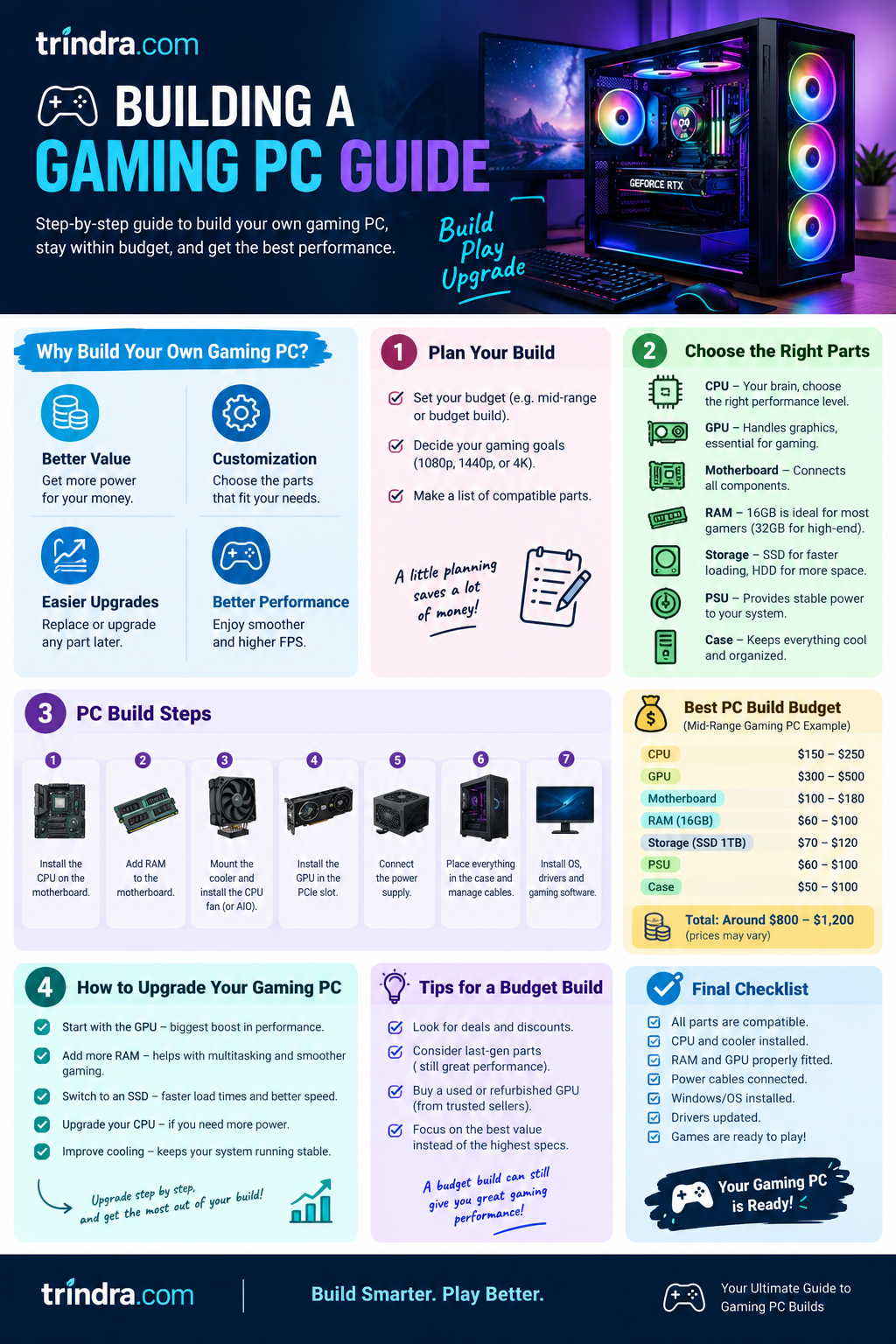
How to Upgrade Your Gaming PC for Better Performance
A well-planned computer can remain useful for years through carefully selected upgrades. Learning how to upgrade your gaming PC allows you to improve performance without necessarily replacing the entire system.
1. Identifying Hardware That Limits Gaming Performance
Before purchasing new components, determine what is causing performance problems. Low frame rates may result from limited graphics performance, processor bottlenecks, insufficient memory, overheating, or software issues.
Check your system’s performance information while running your usual games. Lowering certain graphics settings or updating drivers may also improve performance without additional spending.
Understanding the cause of a problem helps you choose the right upgrade instead of buying hardware you do not need.
2. Upgrading RAM, Storage, and Graphics Performance
Adding RAM may improve performance when your current memory capacity is insufficient. Expanding your SSD storage also gives you moreroom for games, applications, and other files.
If the graphics card limits gaming performance, replacing it with a compatible model may improve frame rates and graphical quality.
Before upgrading, check motherboard compatibility, case dimensions, power supply capacity, and available connectors. Some graphics cards require additional power connections or more physical space than older models.
3. Planning Future PC Upgrades for Long-Term Value
Planning for future upgrades can make your first computer more flexible. Choose a case with sufficient space, a reliable power supply, and a motherboard that supports the features you need.
However, not every component can be upgraded independently. A newer processor may require a compatible motherboard or BIOS update, while a more powerful graphics card may require a stronger power supply.
A practical PC building guide for beginners should encourage long-term planning without suggesting that you need to purchase expensive hardware before you actually need it.
Conclusion
Following a PC building guide for beginners makes it easier to understand computer components, choose compatible hardware, and assemble a gaming computer with confidence. By setting a realistic budget and following the correct PC build steps, you can create a system suited to your gaming preferences.
A balanced mid gaming PC build can provide excellent value when you prioritize the right components and avoid unnecessary expenses. Use your gaming PC build checklist before starting the system, install the required software, and test the computer before playing demanding games.
You can also improve your system over time by upgrading compatible components when your needs change. Careful research and sensible purchasing decisions will help you get more value from your investment.
Call to Action: Visit trindra.com for more beginner-friendly gaming guides, technology tutorials, and practical advice to help you make smarter computer-building decisions.
Frequently Asked Questions
1. Is building a gaming PC difficult for beginners?
Building a gaming PC requires patience and attention to detail, but beginners can learn the process by following reliable instructions, checking compatibility, and consulting component manuals.
2. What components are required to build a gaming PC?
The main components include a CPU, motherboard, RAM, storage drive, power supply, case, and a graphics card when required. You will also need a monitor, keyboard, mouse, and operating system.
3. How much RAM is suitable for a gaming computer?
For many modern gaming systems, 16 GB is a reasonable starting point, while 32 GB may be beneficial for demanding games and multitasking. Always check the requirements of your preferred games.
4. Can beginners build a gaming PC on a limited budget?
Yes. Compare hardware prices, consider suitable previous-generation components, and prioritize the parts that most affect your gaming experience. Avoid compromising on compatibility or power supply reliability.
5. Can I upgrade my gaming PC in the future?
Yes. Depending on compatibility, you may be able to upgrade your RAM, storage, graphics card, or processor. Check your motherboard, power supply, and case specifications before purchasing replacement components.
