
Home WiFi Network Installation: Complete Setup Guide
A reliable internet connection has become an important part of everyday life, whether you work from home, attend online classes, stream videos, play games, or connect smart devices. A proper home wifi network installation can help you get better coverage, stronger connections, and a more organized network. Fortunately, setting up a wireless network at home does not always require professional assistance. With the right equipment and a few simple steps, you can create a secure and dependable connection for your household.
This guide explains home wifi setup, router installation, wireless network configuration, and useful tips for improving your home connection.
Understanding Your Home wifi Network
Before starting the installation, it helps to understand the basic equipment involved in a home network. Knowing what each device does can make the setup process much easier.
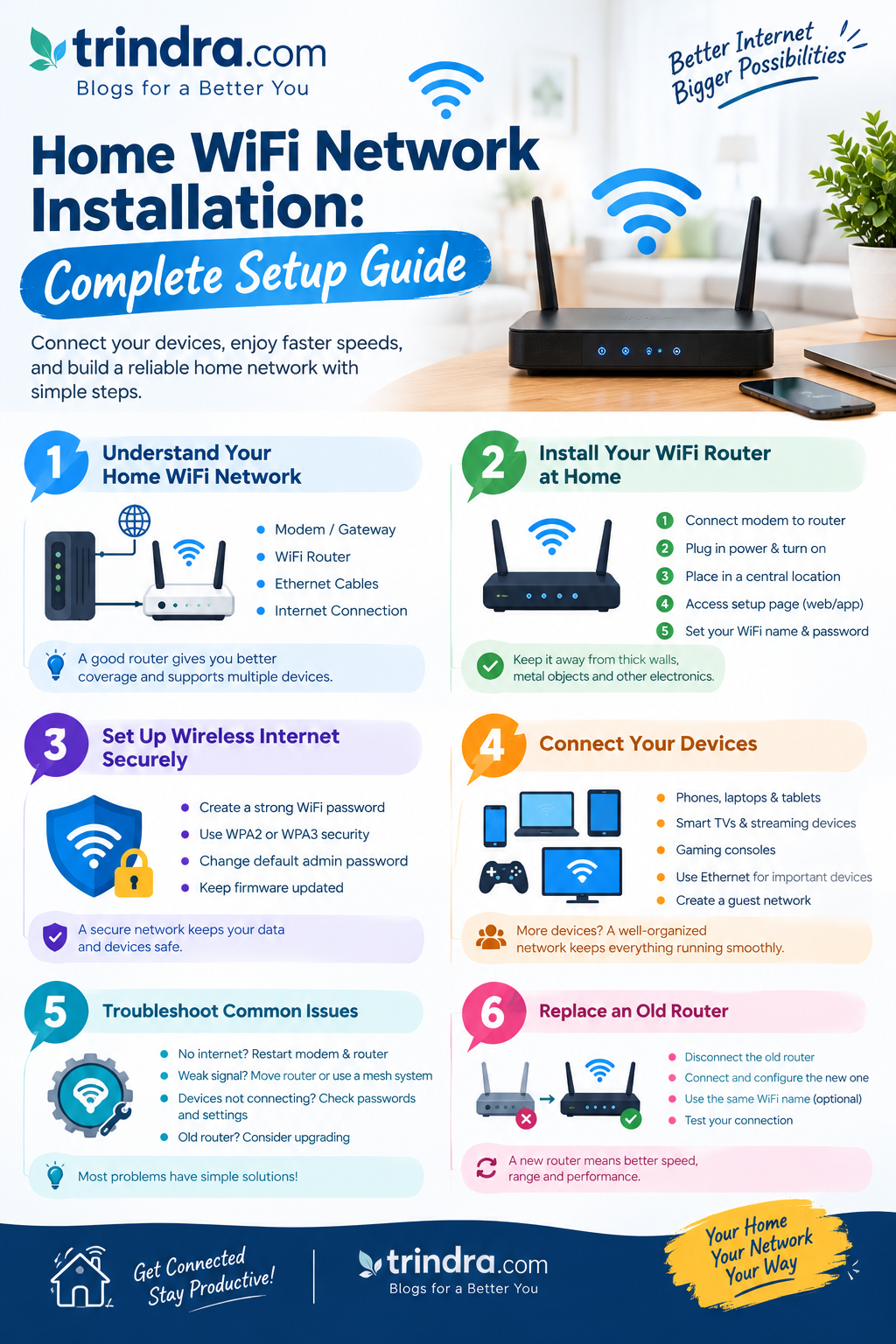
What You Need for a Home Network
A typical setup includes an internet connection from your service provider, a modem or gateway, and a wifi router. Some internet providers combine the modem and router into one device. You may also need Ethernet cables to connect the devices.
Your router creates the wireless network that allows phones, laptops, tablets, smart TVs, and other devices to access the internet.
Home Network With Router
A home network with router allows several devices to share the same internet connection. The router communicates with connected devices and directs internet traffic between them.
Modern routers may also provide features such as guest networks, parental controls, automatic updates, and security settings.
Choosing the Right Router
When selecting a router, consider the size of your home, number of connected devices, internet speed, and the areas where you need WiFi coverage. A router that works well in a small apartment may not provide enough coverage for a larger house.
wifi standards, available Ethernet ports, and support for newer technologies can also be considered before purchasing a device.
How to Install a wifi Router at Home
Once you have the necessary equipment, the physical installation is usually straightforward. The exact process can vary depending on your internet provider and router model.
Connect Your Modem or Internet Gateway
First, make sure your modem or internet gateway is connected to the service provider’s line. Turn it on and wait until its connection indicators show that it has established an internet connection.
If your provider gives you a combined modem-router device, you may not need a separate router.
Connect the Router
Use an Ethernet cable to connect the modem to the router’s internet or WAN port. Plug the router into a power source and switch it on.
Wait for a few minutes while the router starts. The indicator lights may change during this process.
Place the Router in a Suitable Location
Router placement can have a noticeable effect on wireless coverage. Try to place the router in a central and elevated location rather than hiding it inside a cabinet or placing it behind large objects.
Keep it away from thick walls, metal objects, and other electronics that may interfere with the wireless signal.
Open the Router Setup Page
Connect your computer or phone to the router using wifi or an Ethernet cable. Then follow the setup instructions provided with your router.
Many modern routers use a mobile application or web-based setup page. From there, you can create your wifi network name and password.
Setting Up Wireless Internet Securely
After connecting your router, the next step is configuring your wireless network. A few basic security changes can help protect your connection.
Create a Strong wifi Name and Password
Choose a recognizable network name that does not reveal unnecessary personal information. For the password, use a combination of letters, numbers, and symbols.
Avoid using easy-to-guess information such as your name, phone number, or simple number sequences.
Choose the Appropriate Security Setting
Modern routers commonly support security options such as WPA2 or WPA3. If your devices support WPA3, it can provide a newer security option. Otherwise, WPA2 may still be appropriate depending on your equipment.
Check your router manufacturer’s instructions if you are unsure which setting to use.
Change the Default Router Password
The router’s administrator password is different from your wifi password. Change the default administrator credentials when possible.
Keeping default login information can make it easier for unauthorized users to access router settings.
Update the Router Firmware
Router manufacturers sometimes release firmware updates that improve performance, compatibility, and security. Check your router’s administration page or mobile application for available updates.
If automatic updates are available, enabling them can reduce the need to check manually.
How Can I Set Up a Home Network for Multiple Devices?
Once your wifi is active, you can begin connecting the devices used around your home. A properly organized network can make everyday internet use more convenient.
Connect Phones, Laptops, and Tablets
Open the wifi settings on your device and select the network name you created. Enter the password and wait for the device to connect.
If a device cannot connect, confirm that the password is correct and that the device is within a reasonable range of the router.
Connect Smart TVs and Streaming Devices
Smart TVs, streaming boxes, and gaming consoles can usually connect through wifi For devices that remain in one location, an Ethernet connection may sometimes provide a more stable connection.
This can be especially useful for devices that regularly stream high-quality video or transfer large amounts of data.
Use Ethernet for Important Devices
WiFi is convenient, but Ethernet can provide a direct connection between a device and the router. Desktop computers, gaming systems, and some smart home equipment may benefit from a wired connection.
Using Ethernet can also reduce the number of wireless devices competing for available bandwidth.
Create a Guest Network
If your router supports guest WiFi, consider using it for visitors. A guest network can allow visitors to access the internet without giving them access to the same network used by your personal devices.
This can provide an additional layer of organization and privacy for your home network.
Home Network Set Up Troubleshooting Tips
Even when you follow the instructions carefully, you may occasionally experience connection problems. Most basic issues can be checked without changing complicated router settings.
WiFi Is Connected but Internet Is Not Working
If your device connects to WiFi but cannot access websites, check the modem or gateway first. Restarting the modem and router may resolve temporary connection problems.
If the problem continues, check whether your internet service provider is experiencing an outage.
WiFi Signal Is Weak
A weak signal may be caused by distance, walls, furniture, or interference from other devices. Moving the router to a more central position can sometimes improve coverage.
For larger homes, a mesh WiFi system or additional access point may provide better coverage than relying on a single router.
Some Devices Cannot Connect
Older devices may not support the same WiFi standards or security settings as newer routers. Check whether the device has updated network drivers or firmware.
You can also restart the device and forget the saved WiFi network before connecting again.
When to Replace an Old Router
If your router is several years old, frequently disconnects, has limited coverage, or cannot handle the number of devices in your home, replacing it may be worth considering.
When replacing an old WiFi router with a new one, make sure the new router is compatible with your internet service and supports the speed you receive from your provider.
How to Replace an Old WiFi Router With a New One
Replacing a router does not necessarily mean rebuilding everything from scratch. However, you will need to configure the new device correctly.
Disconnect the Old Router
Turn off your modem and old router before disconnecting the cables. Keep track of which cable connects the modem or internet source to the router.
Connect the New Router
Connect the modem to the new router’s WAN or internet port. Turn on the modem first and allow it to establish a connection. Then turn on the new router.
Configure the New WiFi Network
Use the manufacturer’s setup application or web interface to configure the network name, password, security settings, and other preferences.
Some routers allow you to use the same WiFi name and password as your previous router. This can make reconnecting previously saved devices easier, although you should still follow the new router’s setup instructions.
Test Your Connection
After completing the configuration, connect several devices and test websites, applications, video streaming, and other services.
If everything works correctly, your home wifi network installation is complete.
Final Tips for a Reliable Home WiFi Network
A successful home wi fi setup is not only about connecting a router. Proper placement, security, updates, and regular troubleshooting can help maintain a reliable connection.
Keep your router’s firmware updated, use a strong password, and periodically review the devices connected to your network. If your home has dead zones, consider improving coverage with a mesh system or additional networking equipment.
Whether you are learning how do I set up wifi for the first time or upgrading an existing network, taking these steps can make the process easier and more organized.
Conclusion
A good home wifi network installation can provide dependable internet access throughout your home. From connecting the modem and router to creating a secure wireless network, most basic setups can be completed by following the manufacturer’s instructions carefully.
Understanding how to install a wifi router at home, choosing a suitable location, protecting your network, and knowing how to troubleshoot common problems can help you maintain a better connection. If your current router is outdated, upgrading it may also improve coverage and support for newer devices.
Ready to improve your home connection? Follow these simple setup steps, secure your router, and create a reliable WiFi network that works smoothly for your everyday devices.
Frequently Asked Questions
1. How do I set up wifi at home?
Connect your modem to the router, power both devices, and follow the router’s setup instructions to create your WiFi name and password.
2. What do I need for a home wifi setup?
Usually, you need an internet service, modem or gateway, wifi router, power connection, and Ethernet cable.
3. How can I set up a home network securely?
Use a strong wifi password, choose a modern security option such as WPA2 or WPA3, change default administrator credentials, and keep router firmware updated.
4. Should I replace my old wifi router?
If your router has poor coverage, frequent connection problems, limited features, or difficulty supporting newer devices, replacing it may be worth considering.
5. Can I use Ethernet instead of wifi?
Yes. Ethernet provides a wired connection and can be useful for devices such as desktop computers, gaming systems, and smart TVs.